Set up your Onn stick
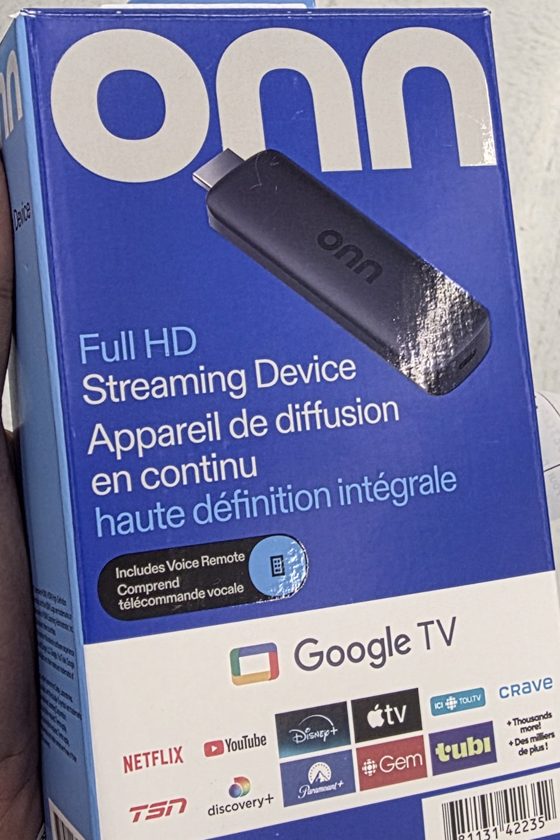
For the Onn Full HD Streaming Device (Google TV, with voice remote) from Walmart. Follow these steps once, about 15 minutes, and NextGen Cable is ready on your TV.
You need:
- A TV with a free HDMI port, and a wall socket nearby
- Your Wi-Fi name and password
- Your phone and a Google account (Gmail); you can make one for free during setup
-
Plug it in
- Push the stick into an HDMI port on the back or side of the TV.
- Connect the power cable to the stick and its plug to the wall socket (not the TV's USB port, it's too weak).
- Turn on the TV and press Input or Source on the TV's own remote until you see the Onn / Google TV screen.
-
Pair the remote
- Put the batteries in the Onn remote.
- When the TV asks, hold the buttons it shows (usually Back and Home) for a few seconds until it says Paired.
-
Set up Google TV
- Pick your language, then choose Set up Google TV.
- The TV shows a QR code. Scan it with your phone's camera and follow the steps on the phone: it sends your Wi-Fi and Google account to the TV.
- No phone handy? Choose Use remote instead and type your Wi-Fi and Google account with the remote.
- Press Skip on the suggested apps. If it asks to update, let it finish. You now see the Google TV home screen.
-
Install the Downloader app
- On the home screen, go to Search (top left) and type Downloader.
- Choose Downloader by AFTVnews (orange icon) and press Install.
-
Allow Downloader to install apps
- Open Settings (the gear, top right) › System › About.
- Scroll to Android TV OS build and press OK 7 times until it says "You are now a developer".
- Press Back to Settings › Apps › Security & restrictions › Unknown sources, and turn on Downloader.
-
Get AppHub
- Open Downloader. Press Allow if it asks for access to files.
- In the box, type:
tv.bulkbazaar.ca/bazaar
and press Go. - When it has downloaded, press Install. If Google Play Protect warns you, choose More details › Install anyway.
- Press Open. AppHub shows all our apps.
-
Install NextGen Cable from AppHub
- In AppHub, select NextGen Cable and press Install.
- The first time, the TV asks to allow AppHub to install apps: turn it on and press Back.
- Press Install (and Install anyway if Play Protect asks), then Open.
Quicker way without AppHub: in Downloader type tv.bulkbazaar.ca/get to install NextGen Cable directly.
-
Sign in to NextGen Cable
- NextGen Cable shows a short code. On your phone, go to google.com/device (or scan the QR code on the TV), enter the code and pick your Google account.
- Or sign in with the email and password you made for NextGen Cable.
- You only do this once. The TV carries on by itself.
-
Put NextGen Cable on the home screen
- Press Home. In Your apps, highlight NextGen Cable, hold OK and choose Add to favourites.
- Move it to the front so it's the first app you see when the TV turns on.
✔ All done! From now on: turn on the TV, press Home, open NextGen Cable.
- This stick is made for one channel at a time (Home, full screen, Browse). The 4- and 6-channel layouts may stutter on it; for those, the Onn 4K box is better.
- When a new version is ready, NextGen Cable shows "New update available"; press it and choose Install. AppHub's Update all button updates all our apps at once.
Stuck?
Send us a message on WhatsApp at 437 602 6500 with a photo of the TV screen, or post on the Suggestions page, and we'll help you. Common problems are in the "Problems" tab of the install guide.